GPT Image 1.5 Review: OpenAI Just Ended the Era of "AI Gacha"
GPT Image 1.5 has arrived.
If the first half of the year was defined by the battle of logic among LLMs, the second half has shifted the war entirely to the world of pixels. Faced with the viral dominance of Google's Gemini "Nano Banana" and the unshakeable aesthetic moat of Midjourney v7, OpenAI has finally broken its silence.
Released quietly on December 17, 2025, this update signals a massive shift in AI image generation: moving from "rolling the dice" to precision execution.
OpenAI skipped the flashy keynote and live demos to focus entirely on solving the creator's biggest bottleneck: Control. With a subtle but powerful update, they have transformed the "Images" tab from a novelty feature into a serious design workflow.
The Core Breakthrough: Precision Editing
The biggest leap in GPT Image 1.5 is its ability to perform precise, localized edits.
When users request an edit, the model now isolates and alters only the specific region targeted. Crucially, global elements—such as lighting, composition, and character identity—remain perfectly intact across multiple rounds of iteration. This solves the single biggest pain point in previous AI workflows: the risk of "global collapse," where fixing one small detail (like a hand or a prop) often ruined the entire image.
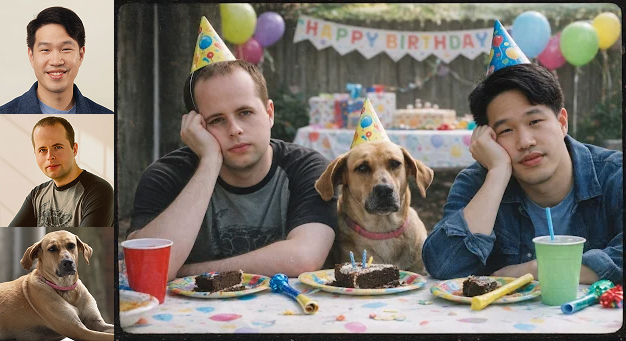
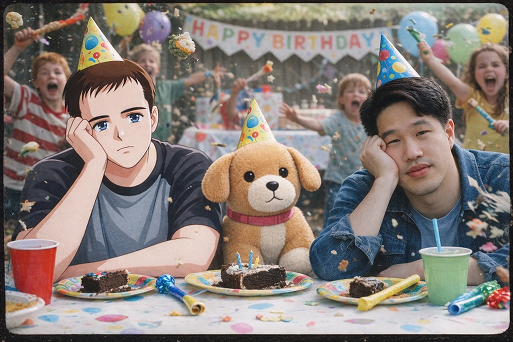
In the official demo, OpenAI showcased the model's versatility by performing five distinct operations using just three source inputs (two men and a dog): add, delete, composite, blend and transfer.
Improved Text Rendering Accuracy
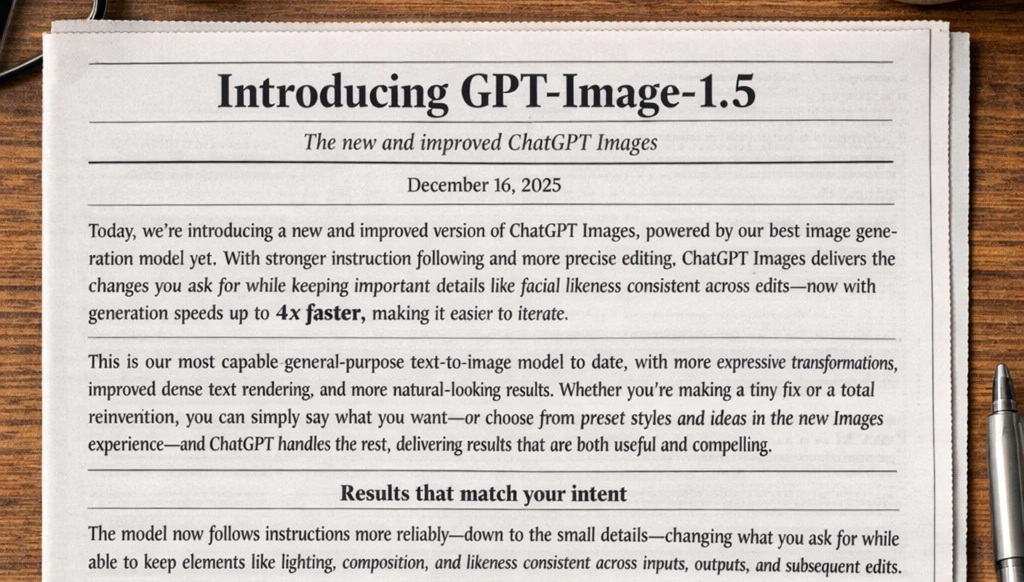
The new model takes text rendering to the next level, capable of handling dense paragraphs and small font sizes without losing clarity.
In a striking demo, the model generated an image of a raw Markdown document describing "GPT Image 1.5". Every header, bullet point, and line of text was rendered with perfect legibility—a level of detail that is truly impressive.
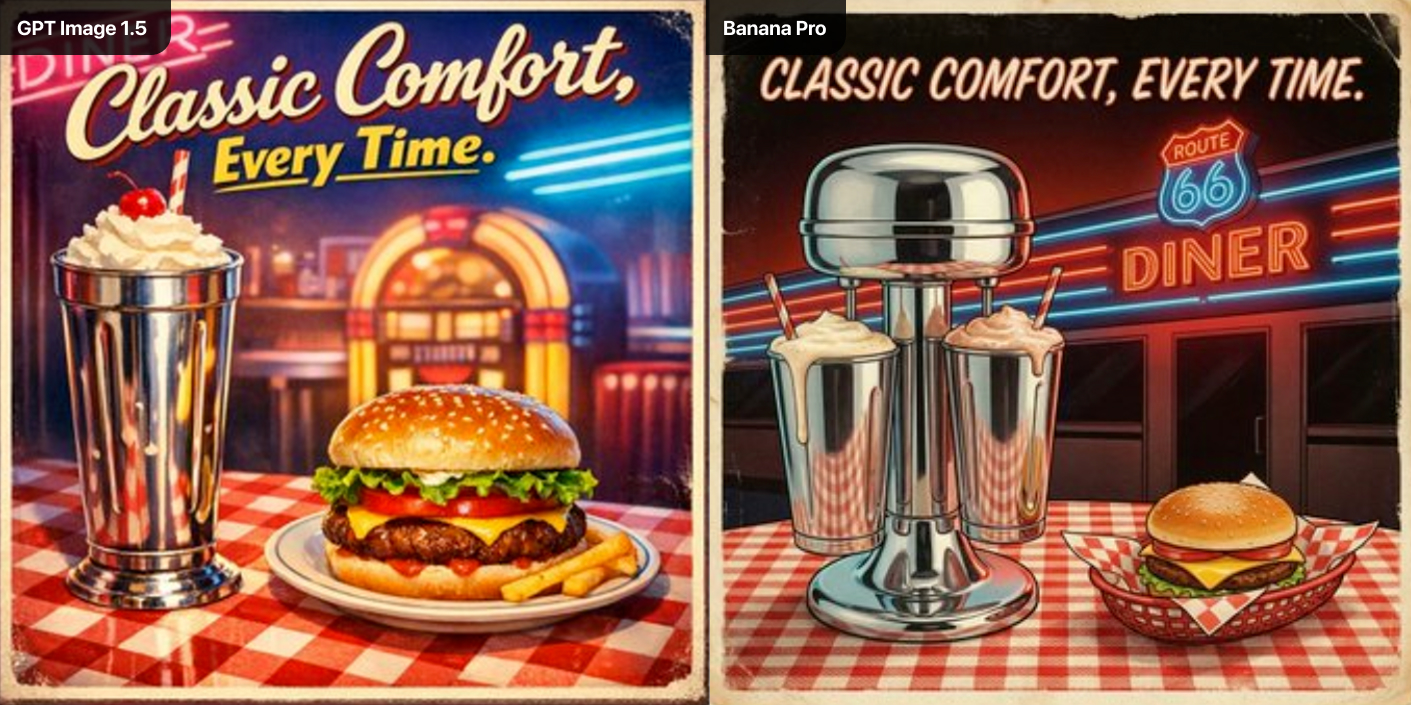
Comparing poster text generation between GPT Image 1.5 and Nano Banana Pro, it's clear that GPT Image 1.5 delivers remarkable results for English text, with more stylish typography that better fits the intended scene.
When it comes to multilingual support, OpenAI still has a noticeable shortcoming, while Google's Nano Banana Pro holds an overwhelming advantage.
Higher Image Rendering Quality
GPT Image 1.5 brings notable improvements in realism. In multi-face scenes, faces look more natural and better capture era-specific atmospheres compared to GPT Image 1, avoiding the older version's "plastic-like" appearance and premature cropping. The model also handles large numbers of small faces with greater stability and consistency, preserving detail across complex scenes.
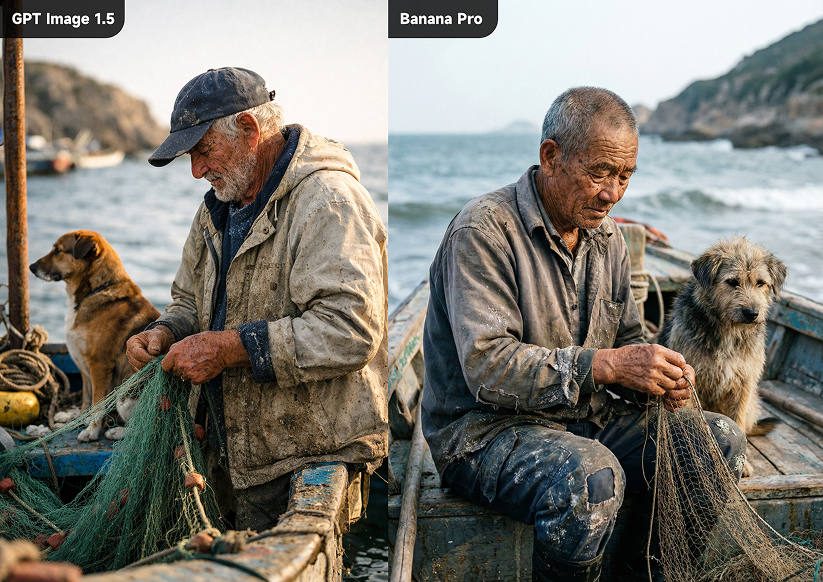
Using the same prompt—a photorealistic snapshot of an elderly sailor standing on a small fishing boat, tending to his nets, with a dog quietly sitting nearby, featuring realistic skin textures (wrinkles, pores, sun damage), worn and salt-stained clothing, and natural seaside sunlight; shot with a 50mm lens, mid-close shot, eye-level, shallow depth of field, slight film grain, unposed and unretouched, 3:4 aspect ratio—we generated images using both GPT Image 1.5 and Nano Banana Pro.
The results show that both models are closely matched in capability. GPT Image 1.5 produces images with slightly higher saturation and contrast, giving a more vivid feel, while Nano Banana Pro delivers a more natural, everyday tone.
Benchmark Highlights: GPT Image 1.5 Flexes Its Muscle
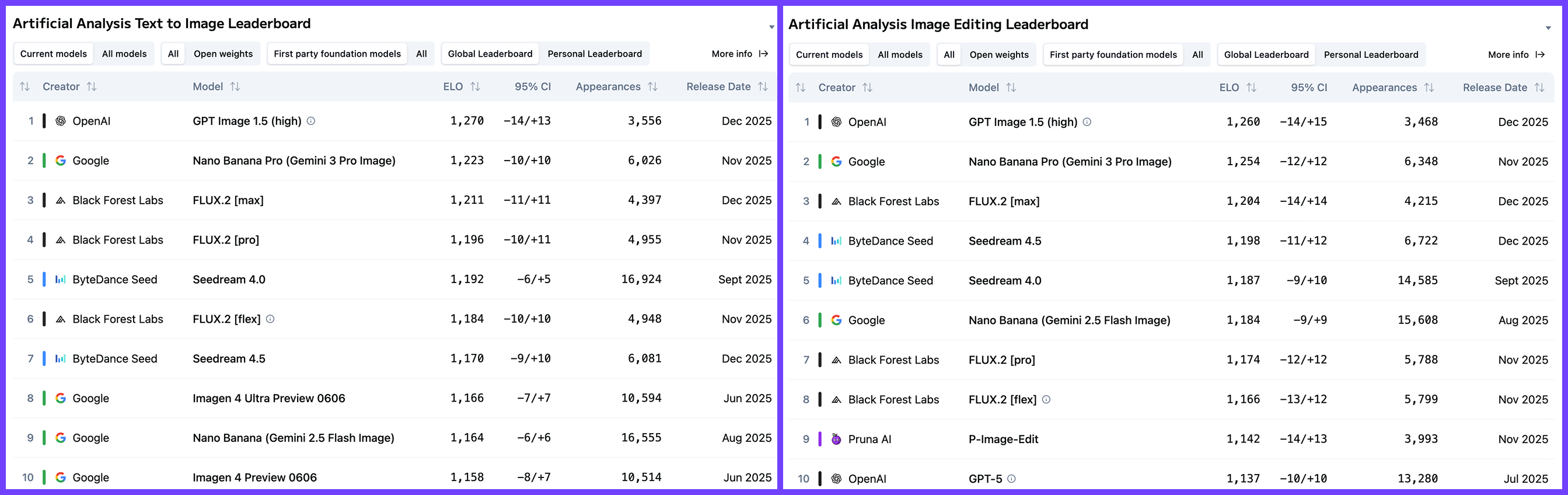
In the benchmarking stage, it was only natural for the models to show their strengths. According to the evaluation firm Artificial Analysis, GPT Image 1.5 ranked first in both text-to-image generation and image editing, outperforming Nano Banana Pro.
However, in the GenAI Image Editing Showdown, which emphasizes fine-grained image editing capabilities, GPT Image 1.5 still fell short of surpassing Google's model. Notably, its instruction adherence rate reached an impressive 90%, maintaining a significant lead in this aspect.
How to use it for free on Artflo
Get started in 4 simple steps:
- Log in and create a project – Open Artflo and start a new project.
- Add an Input Node – Enter your prompt and, if needed, upload reference images into the context slots.
- Add an Image Node – Choose GPT Image 1.5 from the model dropdown menu.
- Run your project – Click Run and watch GPT Image 1.5 bring your ideas to life.